Streaming Troubleshooting: How to Identify Common Problems
Learn how to investigate common streaming problems, including connection issues, application errors, device compatibility and performance.
Read guide
Learn how to prepare your home network for streaming, improve Wi-Fi coverage and understand the benefits of a stable internet connection.
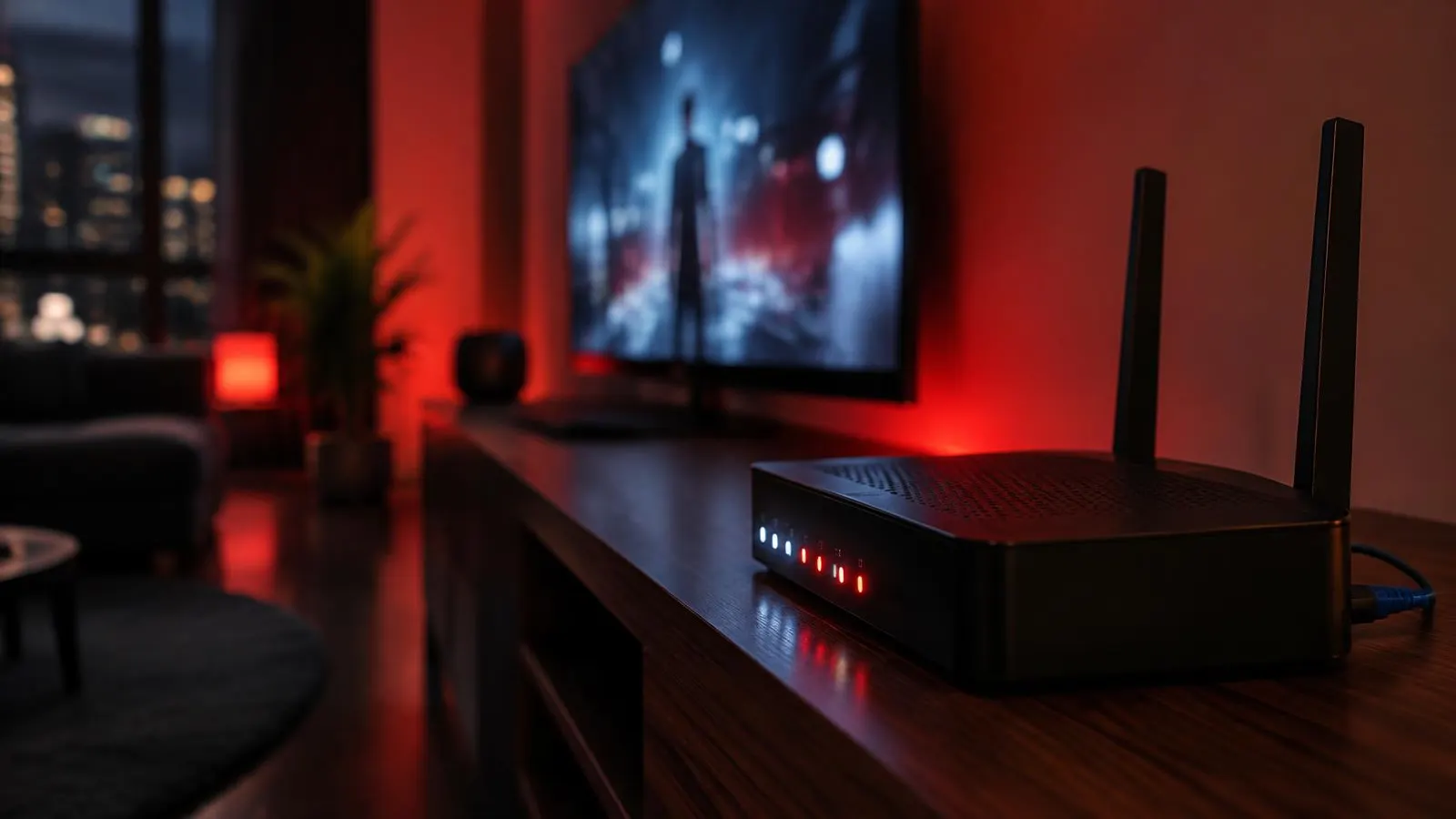
Many streaming problems start inside the home rather than with the service. A router hidden in a cupboard, a TV at the far end of the house or a busy evening of downloads can all make playback less smooth.
The good news is that many improvements cost nothing. This guide covers router placement, Wi-Fi signal, cables, congestion and simple checks. It cannot promise uninterrupted streaming — no home network can — but it can help you get the most from the connection you have.
Wi-Fi travels best through open space. Place your router somewhere central and raised, such as on a shelf, rather than on the floor, inside a cabinet or behind the television. Thick walls, mirrors, fish tanks and large metal objects weaken the signal.
Check the signal where you actually watch. Many TVs and streaming devices show signal strength in their network settings; you can also check on a phone standing next to the TV. If the signal is weak, small changes — moving the router a metre, or moving the device out from behind the TV — can make a noticeable difference.
Many routers offer two Wi-Fi bands. One usually reaches further; the other is faster over short distances. If your device supports both, try each to see which works better in your room.
A cable from the router to your TV or streaming box is usually the most stable option, because it avoids wireless interference altogether. If a long cable is not practical, powerline adapters (which carry the connection through your home's electrical wiring) or a mesh Wi-Fi system can help in larger homes. These are optional purchases — try the free steps first.
Your connection is shared by every device in the home. Large downloads, game updates, cloud backups and video calls can all compete with streaming. If playback suffers at certain times, check what else is happening on the network, and consider scheduling large downloads for overnight.
When something feels slower than usual, these quick checks are worth trying in order:
Streaming sticks plugged directly into the back of a TV can receive a weaker signal, because the television itself blocks some of it. A short HDMI extender, often supplied with the device, lets you move the stick out from behind the screen.
If the network checks above do not help, change one thing at a time and note the result, so you know what made the difference. Our streaming troubleshooting guide explains a step-by-step method. Once your network is in good shape, the IPTV installation guide and the compatible devices page will help with setup.
Usually, yes. A cable avoids wireless interference and tends to be more stable.
Evenings are often busier, both in your home and on local networks. Pausing other heavy use can help.
We do not quote a guaranteed figure. The best test is the free trial on your own connection at the times you usually watch.
This is general guidance for UK viewers, not legal or technical advice for your specific setup. If you are unsure, ask our team.
Learn how to investigate common streaming problems, including connection issues, application errors, device compatibility and performance.
Read guideLearn what to check when assessing IPTV compatibility on Fire TV devices, including operating-system support, applications and setup considerations.
Read guideDiscover the potential extra costs of streaming in the UK, including internet access, compatible devices, optional applications and home network equipment.
Read article