Fire TV IPTV Compatibility: What You Need to Know
Learn what to check when assessing IPTV compatibility on Fire TV devices, including operating-system support, applications and setup considerations.
Read guide
Understand Smart TV IPTV compatibility, including operating systems, supported applications, model differences and setup considerations.
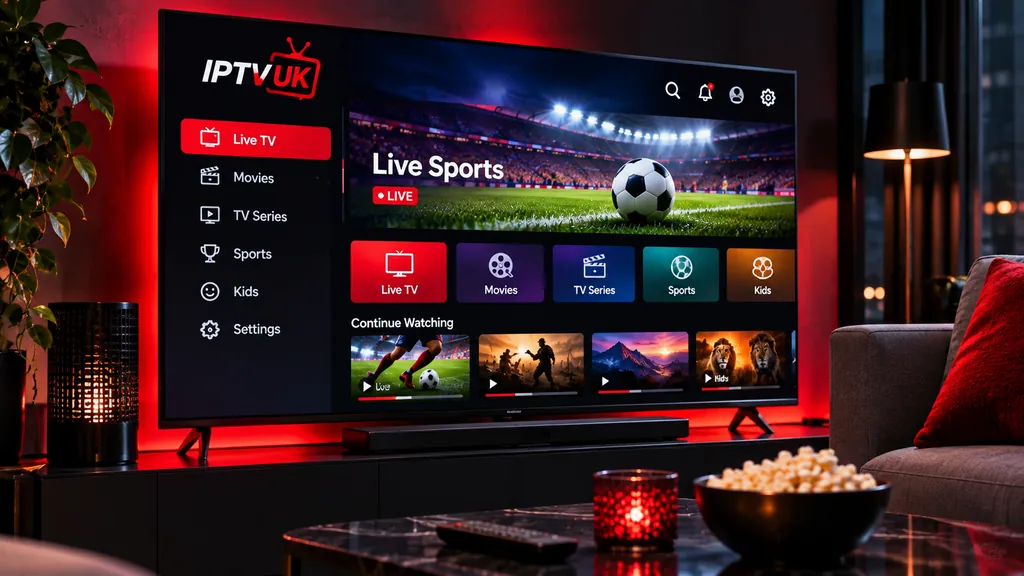
Watching directly on your television, with no extra box, is the simplest setup. Smart TVs are one of the device types we support, but not every Smart TV is the same. Different manufacturers use different operating systems, and even two TVs from the same brand can differ by model year.
This guide shows you how to identify what your television runs, what affects compatibility and when an external streaming device might be the better choice.
Each television manufacturer generally uses its own operating system, or a system shared by several brands. Each has its own app store, its own menus and its own way of handling updates. That is why a setup that works on one Smart TV may not apply to another.
To find out what your TV runs, open its settings and look for a section such as "About", "Support" or "System information". Note the model number (often also printed on a label on the back) and the software version.
The apps available depend on your television's operating system and app store, and sometimes on your region. An app available on one platform may not exist on another. Rather than guessing, send us your TV model and we will tell you what to use.
Older televisions can stop receiving software updates after a number of years. When that happens, newer apps may no longer install or run properly. Check for system updates in your TV settings. If your television no longer receives updates, it may still work, but it is worth asking us before you subscribe.
Smart TVs are designed mainly to display pictures, not to run lots of apps. Entry-level and older models can feel slow in menus. This does not always affect playback, but it can affect how pleasant the service is to use day to day. The free trial is a good way to judge this on your own screen.
Televisions have limited built-in storage. If you have installed many apps, there may not be enough room for another or for updates. Remove apps you do not use, then try again.
If your TV is older, no longer updated, slow, or the right app is not available on its platform, an external device — such as a streaming stick, an Android box or a MAG box — can be a practical alternative. It plugs into an HDMI port and brings its own apps and processor. Our Fire TV compatibility guide explains what to check on one of the most common options. Then follow the IPTV installation guide to set up.
Not necessarily. Compatibility depends on the TV's operating system, model year, software and available apps. Send us your model to check.
Look in the TV settings under About or Support, or on the label on the back of the television.
Possibly. If the TV no longer receives updates, an external streaming device is often a simple alternative.
This is general guidance for UK viewers, not legal or technical advice for your specific setup. If you are unsure, ask our team.
Learn what to check when assessing IPTV compatibility on Fire TV devices, including operating-system support, applications and setup considerations.
Read guideExplore streaming accessibility considerations, including subtitles, audio settings, readable interfaces and device accessibility features.
Read guideLearn how to investigate common streaming problems, including connection issues, application errors, device compatibility and performance.
Read guide